Differential Equations
In this appendix, we’ll including some instruction specifically related to solving differential equations with MATLAB. Our focus will be on graphing direction fields and using numerical solvers. We’ll wrap things up with a final section that will briefly introduce some of the commands available in the Symbolic Math Toolbox.
Direction Fields
A direction field is a vector field where the vectors represent the derivative of the solution to the differential equation. It is helpful for both sketching sample solution curves as well as understanding the long-term behavior of solutions.
In order to graph direction fields in MATLAB, we need to utilize two new functions, one to create a grid of points that we'll calculate the derivative at and a second to actually plot each of the vectors at those points. Additionally, we'll take a look at how we can scale the magnitude of those vectors to make the graph more appealing when necessary.
Creating a Grid
To start, we need a grid of points that we'll plot the vector field on. Conveniently, MATLAB has a function that is designed specifically to do this, called meshgrid.
The meshgrid function
The meshgrid function will create 2-D and 3-D grids of points, returning two matrices that can be combined to form the ordered pairs. The syntax for this function is
[X, Y] = meshgrid(xrange,yrange)
In this expression, xrange and yrange are both vectors containing the possible - and -coordinate values.
This function must be assigned to a vector of variables to return the full sets of pairs.
If the length of xrange is and the length of yrange is , then X and Y will both be matrices. The rows of X will be the vector xrange repeated. The columns of Y will be the vector yrange repeated.
Let's take a look at a quick example to show how this function will work.
Example 1Using meshgrid
To explain a bit how we can use meshgrid, let's imagine that we want a grid of points with -values ranging from 1 to 3 (in unit steps) and -values ranging from -1 to 1 in unit steps. This should result in 9 possible pairs, since each of the three -values can be paired up with 3 -values. The expression
[X,Y] = meshgrid(1:3, -1:1)
will create two matrices:
These matrices will together represent all possible ordered pairs in the grid of the form .
Creating and Graphing the Vectors
Now that we have a way of setting up a grid of points, we need to create the vectors that will be plotted at each of those points. From Calculus, we know that the derivative represents the slope of the tangent line to the function. So the value of the differential equation is the slope of the tangent line to the solution that passes through the point we're evaluating at. If we assume that the slope has value , then thinking of the slope as rise\slash run is like saying . So we'll think of the slope as the hypotenuse of a right triangle whose height is and whose base is 1.
So our goal in MATLAB is to set up a script that creates a grid of points and then calculates the derivative at each of those points. Then it will create a vector field where the arrows all have -component 1 and -component equal to the derivative at the point where the vector is located. Once that is set up, we can plot these vectors using the quiver function.
The quiver Function
The quiver function plots a vector field by creating a Quiver graphics object (as child of an Axes object). It uses the syntax
quiver(X, Y, U, V, scale)
With this usage, arrows will be plotted at coordinates (X, Y). The horizontal components of the arrows are given by U and the vertical components are given by V. scale is an optional argument that adjusts the lengths of the vectors. When it is a positive number, the arrows will first be adjusted so they do not overlap and then be uniformly scaled by a factor of scale. If scale is 0 or "off", the automatic scaling will be disabled. This is its default behavior.
Let's quickly take a look at an easy to evaluate (by hand) autonomous equation to see how all of this can be put together.
Example 2Plotting a Direction Field
Consider the autonomous differential equation
Assuming that , let's plot a direction field for this function. We'll have -values between 0 and 10 and values between -2 and 5.
The following script will create a direction field for this differential equation.
clear all; clc; close all
trange = 0:10;
yrange = -2:5;
[T,Y] = meshgrid(trange, yrange);
S = 0.5 * Y .* (Y-2) .* (3-Y);
quiver(T, Y, ones(size(S)), S);
axis([0 10 -2 5])
A couple things to note in this code. The S vector is the differential equation calculated at least point formed by the (T, Y) pairs. The DE happens to be autonomous, so T isn't part of the equation.
Another thing to note is that we wanted all the horizontal components of the arrows to be 1, so we needed to create a matrix containing all 1s that is the same size as the matrix of the vertical components. Hence the ones(size(S)) argument in the quiver function on line 6. The last line just makes the Axes object's display window match the range we calculated our direction field on.
The graph produced is
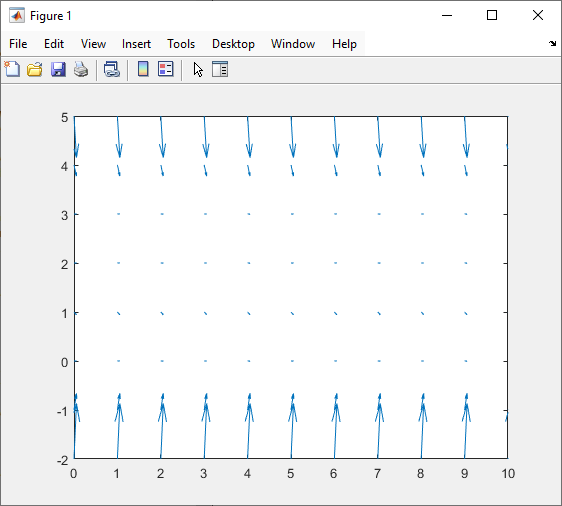
Well, this is decidedly not good looking. One of the major reasons for this is that the magnitude of the vectors is related to the value of the derivative at each point. So in some spots we see big arrows because the derivative is large, while in other locations the arrow is really small and can hardly be seen. We've chosen not to include a scale argument, but even if we did that would change all the arrows uniformly by the same amount, so small arrows will remain small and big arrows will remain big. In the next example, we'll take a look at how we can adjust the lengths of the arrows to make them all unit length.
Example 3Using Unit Vectors
In order to address the issue we saw in the last example, let's add in some small adjustments to make each of the vectors unit length. How do we do this you may ask? The length of each vector is going to be since their horizontal component is 1 and vertical component is . So we can make the vectors have unit length by scaling the components down by this amount. To confirm that this works, we can check with the Pythagorean theorem:
Let's update the script to do this.
clear all; clc; close all
trange = 0:10;
yrange = -2:5;
[T,Y] = meshgrid(trange, yrange);
S = 0.5 * Y .* (Y-2) .* (3-Y);
L = sqrt(1 + S .^ 2);
quiver(T, Y, 1./L, S./L);
axis([0 10 -2 5])
We've added in an expression to calculate the length of the vectors L. In our quiver function, note the change to the horizontal and vertical components to be divided by this length. Since L has the same size as S already, we are able to change the horizontal component to 1./L since this will do the division for each element in L, creating a matrix of the correct size without needing the ones or size functions.
This script produces a much better graph:
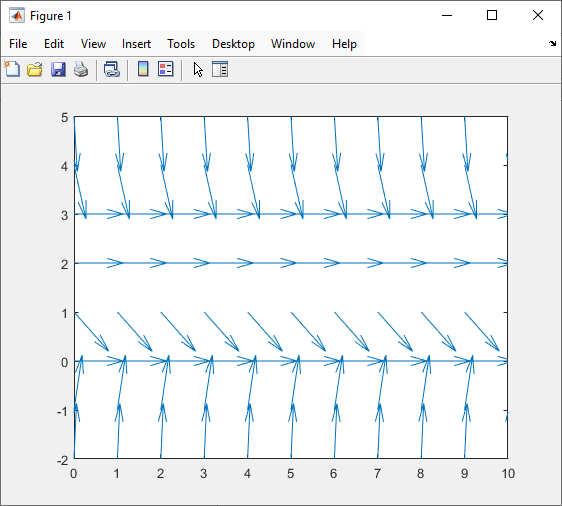
We can still make some changes to improve things though. One thing that will enhance things would be to include additional points in our grid. Right now our mesh is quite course and there are large gaps between the vectors. The vectors are also quite big (even though they're unit length), so it may also help to add a scaling argument to the quiver function to shrink things, especially if we're planning on adding addition points to our grid.
Here's an updated script:
clear all; clc; close all
trange = 0:0.5:10;
yrange = -2:0.5:5;
[T,Y] = meshgrid(trange, yrange);
S = 0.5 * Y .* (Y-2) .* (3-Y);
L = sqrt(1 + S .^ 2);
quiver(T, Y, 1./L, S./L, 0.5);
axis([0 10 -2 5])
We've expanded our grid by using a step size of 0.5 instead of the default of 1. This doubles the number of points in each range. We've also scaled the vectors by a factor of 0.5 in the quiver function, preventing overlap and shrinking all of the arrows so each is distinct in the figure. Keep in mind that we've lost information on how fast the solutions are changing since we made the vectors unit length, but the direction and long-term behavior is still preserved.
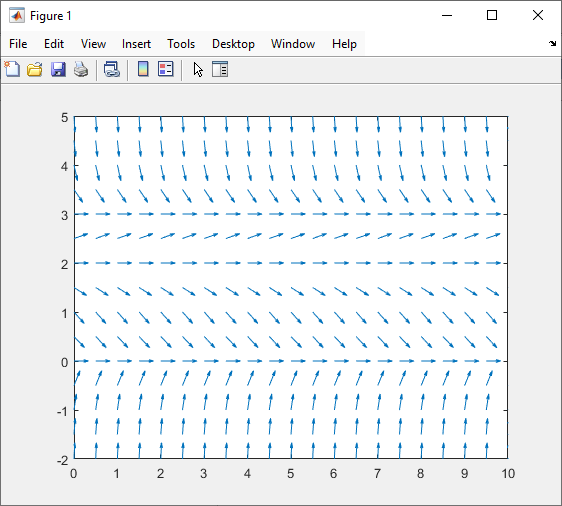
As you can see, this is much better looking than our previous attempts. Play around with these different options when you're making your own graphs. Each differential equation is unique and may lend itself more towards one way or another. So don't be afraid to experiment until you get a graph you're satisfied with.
Numerical Solutions
When it comes to finding numerical solutions to differential equations, there are a variety of approaches one can take with MATLAB. Since it has a full suite of programming constructs, it's possible to code any number of solution algorithms, such as Euler's method or the Runge-Kutta method. Additionally, MATLAB comes with its own built-in numerical solver. In this section, we'll show how we can use this solver.
The ode45 Function
The function ode45 is the built-in numerical solver for differential equations within MATLAB. It solves a differential equation of the form .
The syntax for this function is
[T, Y] = ode45(odefun, tspan, y0)
As indicated in the syntax, this function returns a pair of vectors representing the solution as a set of ordered pairs , which can them be graphed using plot.
The odefun argument should be an function_handle variable or anonymous function representing .
tspan is a row vector [t0, tf] indicating the starting and ending input values for the solution.
y0 is the initial condition .
This is a versatile ODE solver, but is designed for nonstiff ODEs needing medium accuracy. It is recommended as the default solver, but there are others in MATLAB that may be better suited for certain ODEs.
This solver can be used for most standard first-order ODEs that you would encounter in a introductory Differential Equations course. It can also be used to solve first-order systems, which means you can solve second-order ODEs with constant coefficients after rewriting them as a system.
Example 4Solving a First-Order ODE
Solve the IVP over the interval numerically.
Solution
We can do this quite easily in MATLAB with just a few lines.
clear all; clc; close all
[T, Y] = ode45(@(t,y) sin(t)-t.*y, [0, 5], 1);
plot(T, Y)
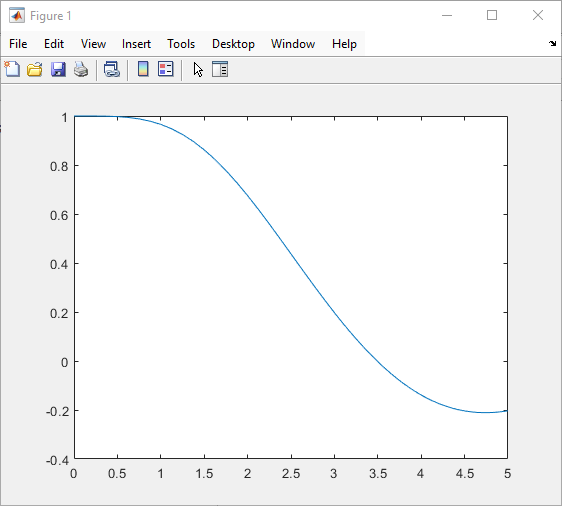
The only thing we needed to change was to make sure that the differential equation was rewritten in the form . Also keep in mind, like always, that you should be vectorizing your expressions when necessary.
The graph of the solution is
Now let's take a look at how we can solve a differential equation with multiple different initial conditions to observe how they affect the solution curve. We'll also plot the solutions on top of the direction field to give another confirmation that the solution is correct.
Example 5Finding a Family of Solutions
Let's go back to the autonomous equation that we solved in the previous section: Let's solve this equation for a range of different initial conditions between -2 and 5.
Solution
We already have code for producing the direction field for this ODE. Now let's add some additional code to produce the numerical solution curves.
clear all; clc; close all
trange = 0:0.5:10;
yrange = -2:0.5:5;
[T,Y] = meshgrid(trange, yrange);
S = 0.5 * Y .* (Y-2) .* (3-Y);
L = sqrt(1 + S .^ 2);
quiver(T, Y, 1./L, S./L, 0.5);

hold on
y0 = -2:5;
[Tsol,Ysol] = ode45(@(t, y) 0.5*y.*(y-2).*(3-y), [0, 10], y0);
plot(Tsol, Ysol)
axis([0 10 -2 5])
We've updated the code by adding in lines 9-12. First, since quiver and plot both produce graphs to be put on our Axes, we want to swap the hold state to on. Line 10 defines a set of initial values that we'll be using as a vector. Nothing really changes with how we code the ode45 function, even though our y0 variable is a vector instead of a scalar. The difference is that Ysol is a matrix instead of just a single vector of -values. Each row in this matrix is the -values for the solution corresponding to one of the entries in y0.
We did decide to change the variables to Tsol and Ysol here to differentiate them from the T and Y values from earlier in the code. We could have overwritten the old values, however, since we didn't need them again. Finally, we kept our axis command at the end on purpose as the XLim and YLim properties are changed every time a new graph is added to the Axes object. So if this line came before the plot function, it would be canceled out.
The final graph that this code produces is
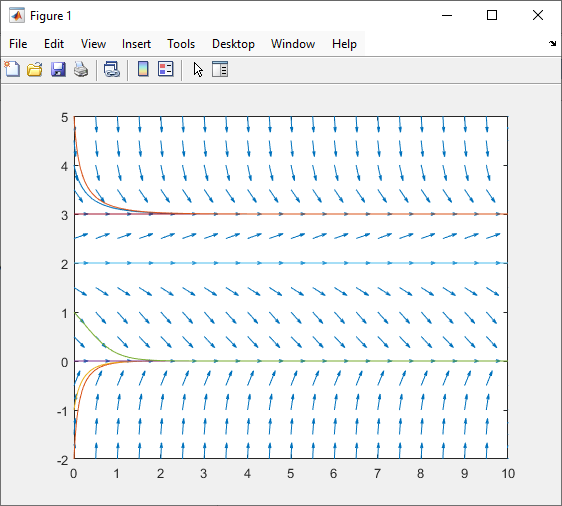
Now that we have both the direction field and possible solutions together, we can confirm that the solutions match the direction field since the arrows are tangent to the curves. We can also see how the end-behavior of the solution curves depends on the initial condition.
As a final example, let's take a look at how we can solve a second-order ODE by rewriting it as a system of first-order equations.
Example 6Second-Order as a System
Numerically solve the IVP on the interval .
Solution
We can start by rewriting this ODE as a system by setting and . This gives the system with initial conditions and .
In order to implement this system in MATLAB, we'll use a local function. Remember that local functions need to be defined at the end of the script.
clear all; clc; close all
[T,Y] = ode45(@funsys, [0, 100], [0; 0]);
plot(T,Y(:,1))
ax = gca;
ax.XAxisLocation = "origin";
ax.YAxisLocation = "origin";

function dydt = funsys(t, y)
	dydt = [y(2); -t.*y(2)-3*y(1)+sin(t)];
end
The code here is somewhat different than you may expect and utilizes some of the material concerning matrices that you may not have seen for a while. Notice first that we have a local function defined at the bottom representing the system. When using ode45 to solve a system of equations, it expects the system to be set up in the form
or alternatively in vector form , where
To mimic this, we've set up the funsys function at the end of the script so that the input y is assumed to be a 2-element column vector representing in the vector form of the system. The output dydt will also be a 2-element column vector, this time representing . Just keep in mind that the first entry is the first equation and the second entry is the second equation.
Returning to the regular part of the code in lines 1-6, notice some of the differences in the ode45 expression. The first argument for ode45 must be a function\_handle. This isn't a problem when we defined the function anonymously, but for functions defined using the normal method, we need to add the symbol in front of its name to convert it to the right type.
The second change is the initial condition argument. Notice that we want the solution to be given as a column vector, just like y and dydt when we defined funsys, so we give the initial conditions as a column vector in ode45 as well.
The output of the ode45 function also need to be examined. In particular, Y is a 2 column matrix in which the first column represents the -values for and the second column represents the -values for . You can confirm this by looking at Y in the Workspace. Since we converted the original ODE to a system by setting the original solution equal to , the solution to the second-order system is the first column of the variable Y. This is why we used Y(:,1) when we plotted the solution in line 3.
The solution curve produced is
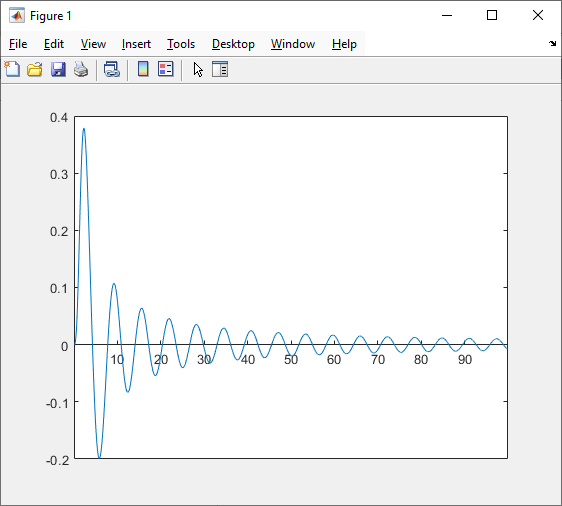
One of the reasons we solved this equation over such a large time interval is to capture the end-behavior, or in this case the steady-state solution.
Summary
- A direction field represents a grid of vectors indicating the tangent line directions to solutions passing through each point in a grid.
- You can use the
meshgridcommand to create a grid of points. - Combined with the grid created with
meshgrid, thequiverfunction can be used to plot a set of vector arrows at each point in a grid of points. - When plotting a direction field, you can ensure that the arrows will be tangent to the solutions passing through a given point by setting the horizontal component to 1 and the vertical component equal to the derivative value at that point (calculated from the differential equation).
- Sometimes a combination of making the vectors have unit length along with additional scaling with the
quiverfunction will help making the direction field look better. Vectors can be made unit length by calculating their length using the Pythagorean theorem and dividing each component by this point. - The
ode45function is a built-in numerical solved for differential equations. It can be used to solve first-order differential equations of the form . Designed for nonstiff ODEs needing medium accuracy, it is recommended as the first solved you should try. There are other solver functions if needed. - Systems of first-order differential equations can also be solved using
ode45. This can be extended to second order ODEs by rewriting them as systems of first-order ODEs.
Key Terms
direction field
meshgrid (function)
ode45 (function)
quiver (function)